
What's new in ProsteKarnety - custom pass dates and names
The September release: enter passes sold earlier with their real dates, give passes readable names, and let clients see who they share a pass with.
Update and see what's landed
The new version of ProsteKarnety is now in the App Store and Google Play. This time we focused on everyday work with passes: dates that match reality, names that tell you at a glance which pass is which, and what your clients see. Here's a short tour.
Passes sold earlier - with their real dates
Moving from paper to the app while some clients have already paid for a pass? Until now, every pass you entered started today. Now, when you create or renew a pass, you can set:
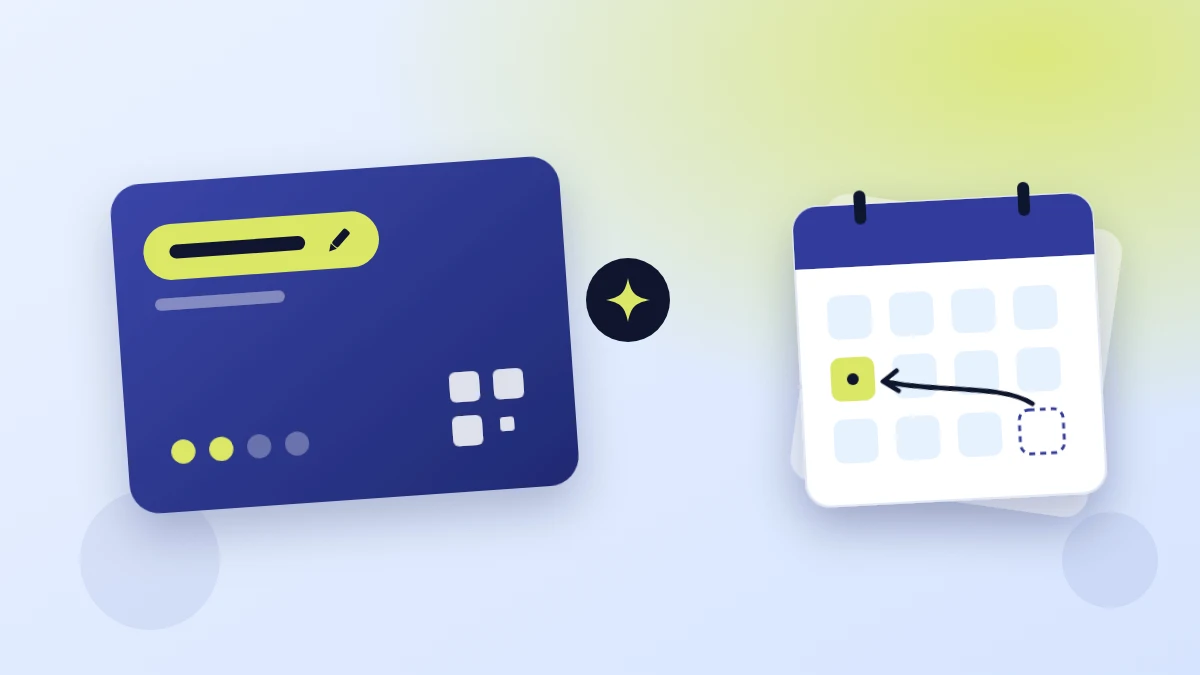
- the creation date - up to a year back or a year ahead. A pass sold in August goes in with its August date - and if the template activates passes right away, validity counts from that date, not from today. A pass dated in the future waits as Pending until you activate it with the Activate button.
- the expiration date - instead of the one from the template, e.g. when a client got a few extra days for free. You pick it from a calendar; it has to be in the future.
You'll find both on the summary when creating a pass: Change creation date and Edit expiration date. Owners and admins have them right away. For an employee, you turn each one on separately in the web panel, on the team member's page, under Permissions: Edit creation date and Edit expiration on creation.
Moving passes over from paper? Enter them with the dates you sold them on - each client keeps exactly the validity they paid for. More on going digital in this guide.
Your own pass name
Several passes from the same template are easy to mix up. Now you can give each one its own name - up to 25 characters - by tapping the pencil icon on the pass details in the app:
- Clients name their pass their own way, e.g. "Swimming with Zoe". Everyone assigned to the pass and your organization can see that name.
- Your team - every employee, not just admins - can give the pass a name that only your organization's staff see.
The original template name doesn't disappear - it's shown under the new name. Every change is recorded in the pass history, and clearing the field brings the template name back.
Who else uses the pass
A family pass, or one shared with a partner? On their own pass details, a client now sees a People on this pass section listing everyone who uses it. Each person shows a name and a masked email (e.g. j***@gmail.com), and their own entry is marked You. Impersonal passes don't have this section.
Fixes
- Dialogs and messages on iPhone no longer hide behind the screen.
- Permissions in the web panel - after changing a team member's role, the permission switches match the selected role right away, before you save.
- Subscription renewals - after a successful payment, your organization's subscription period is now extended correctly.
- Recurring appointments - changing "this and following" appointments in a series is now correctly recorded in the appointment history.
You'll find all of it after updating to the latest version. Get the app, and for the full month-by-month record head to the changelog.